 By
ByAndroid and iOS · by BySFX
 GROM Rec
A one-tap recorder, with a multitrack studio for when a take turns into a song.


- High quality
- Pre-record 10 s
- Easy to edit
- Run it through FX
- Multitrack studio
- Mixing
- Mastering
- Ready-made presets
- PRO
01
Record
Ready before the moment is gone
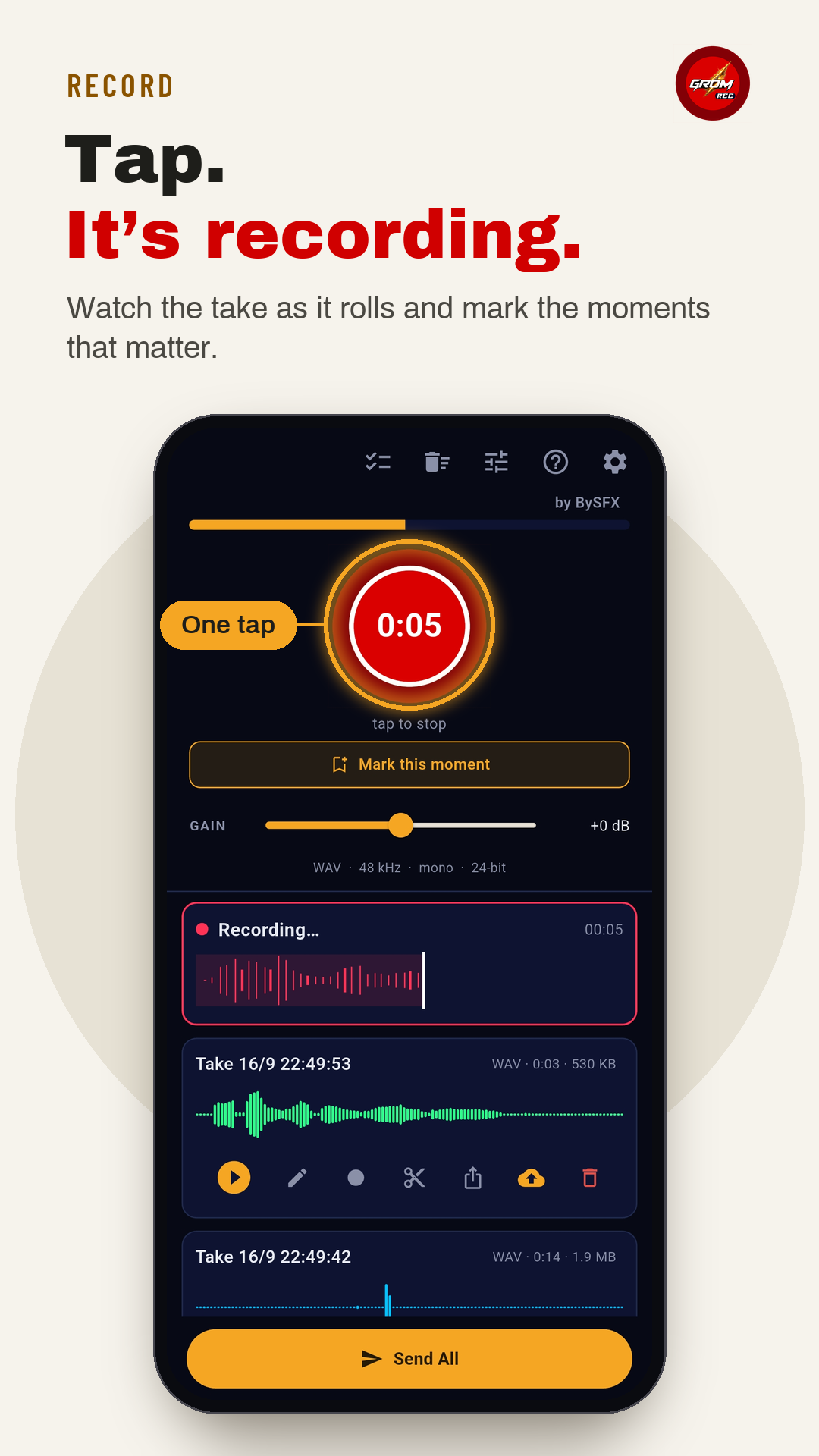
Open the app and tap the red button to start recording. Gain and the format sit right above your takes, and every recording is kept exactly as it was captured.
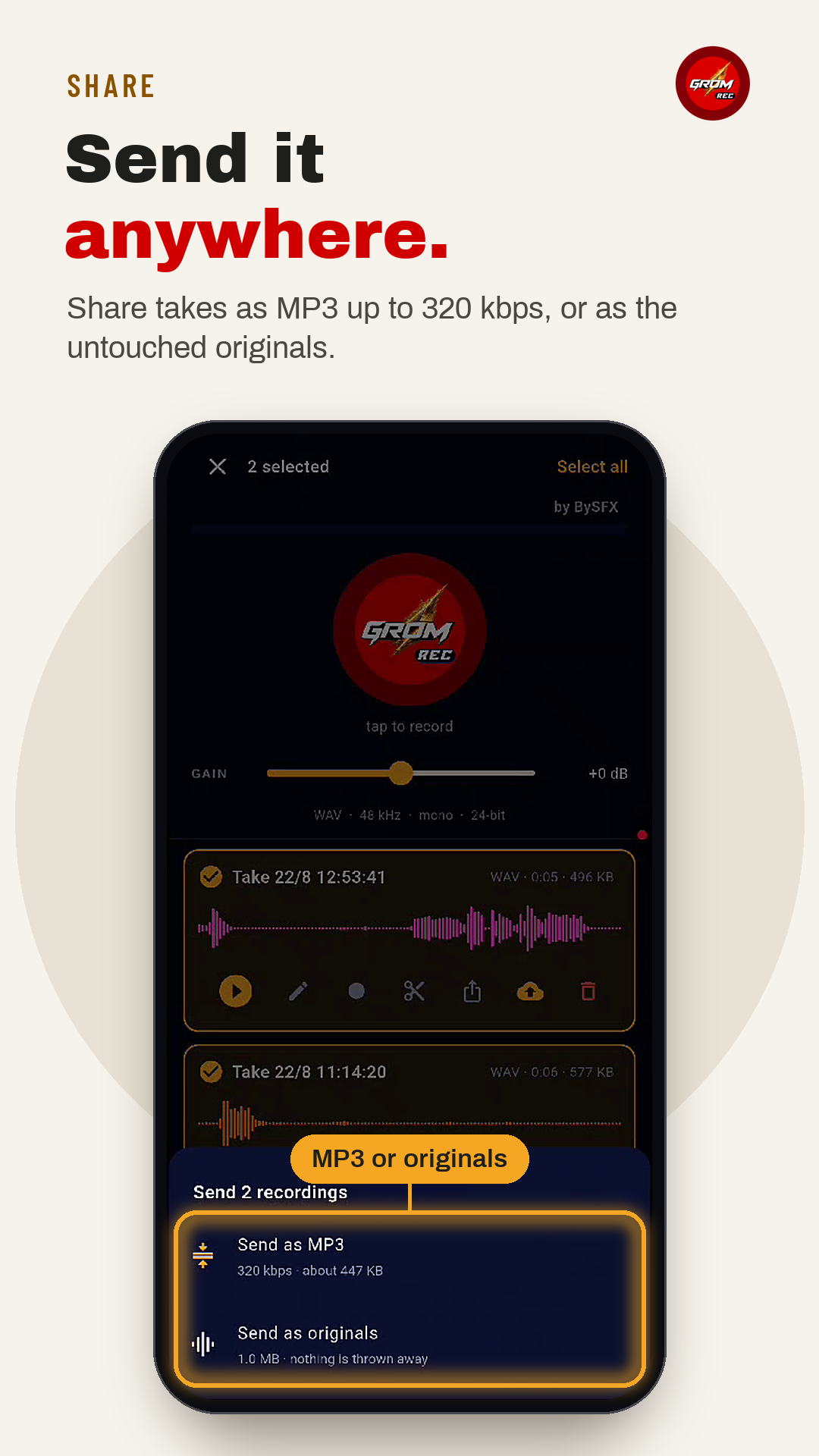
Choose the format once. Send a take as a small MP3 or as the original file.
- Mark this moment while the take rolls
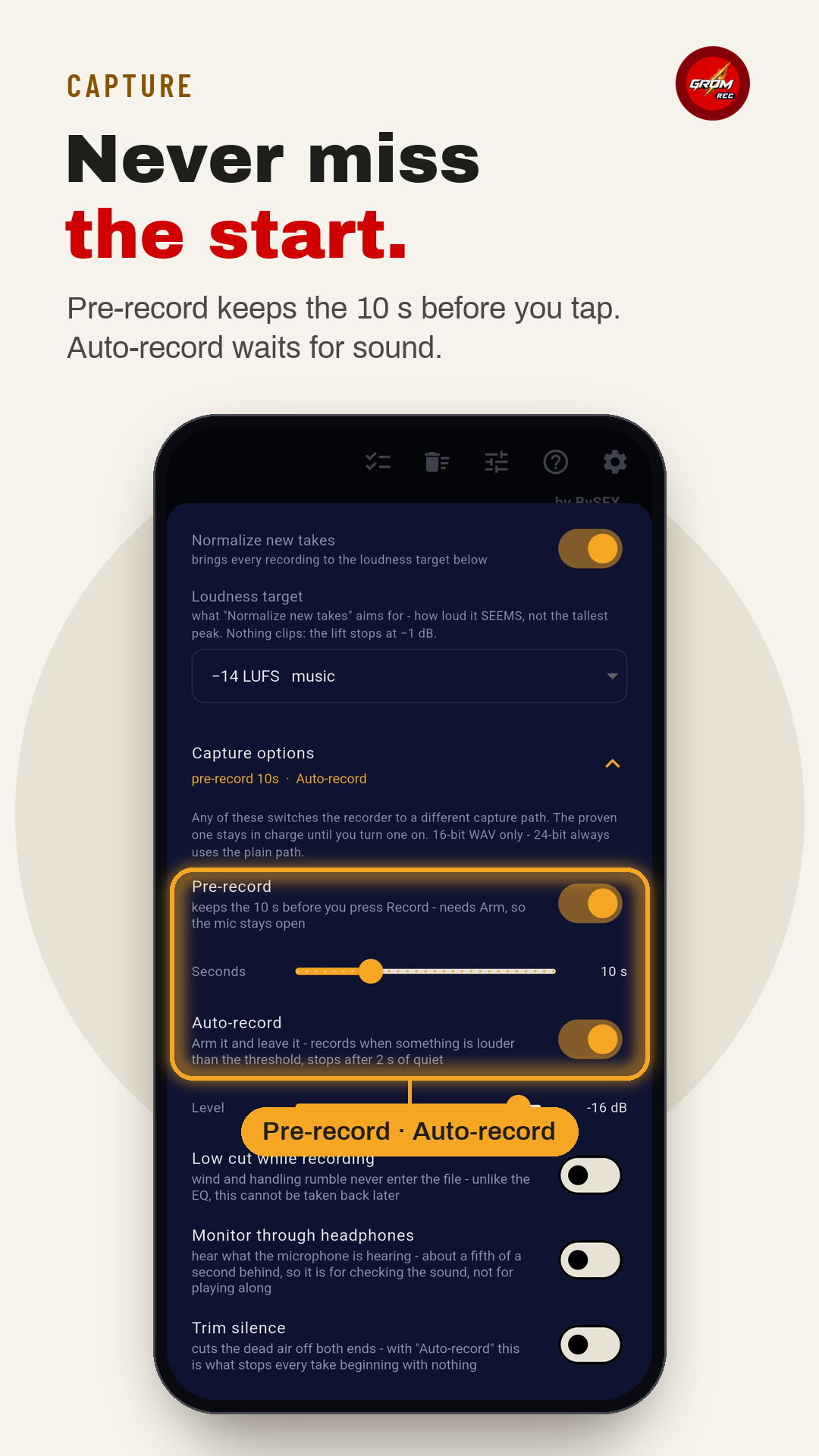
- Pre-record keeps the 10 seconds before you tap
- Auto-record starts on sound and stops after 2 s of quiet
- Low cut and trim silence, set once in Settings
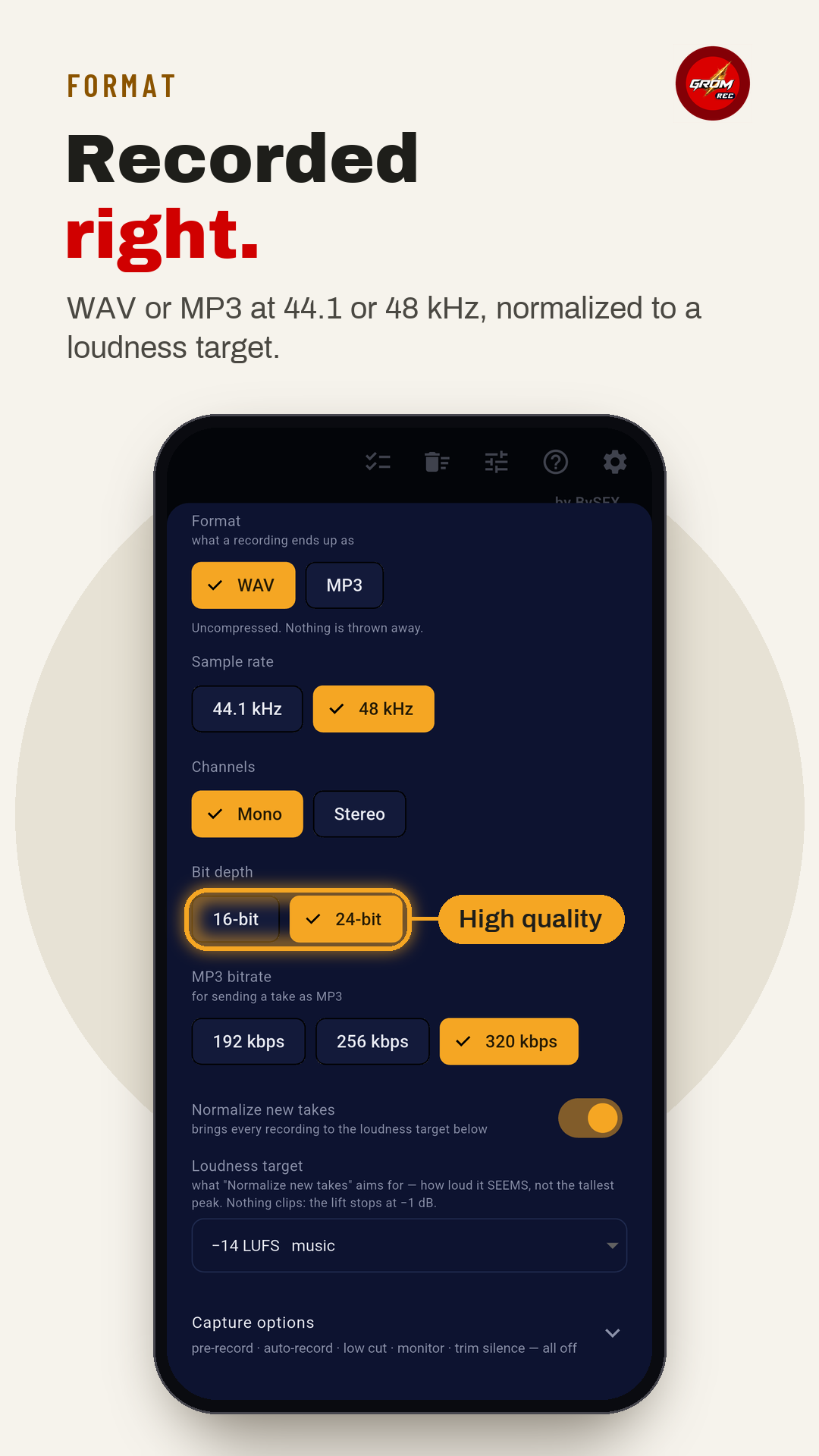
- WAV or MP3 · 44.1 or 48 kHz · mono or stereo · 16 or 24-bit
- New takes normalized to −14, −16 or −23 LUFS
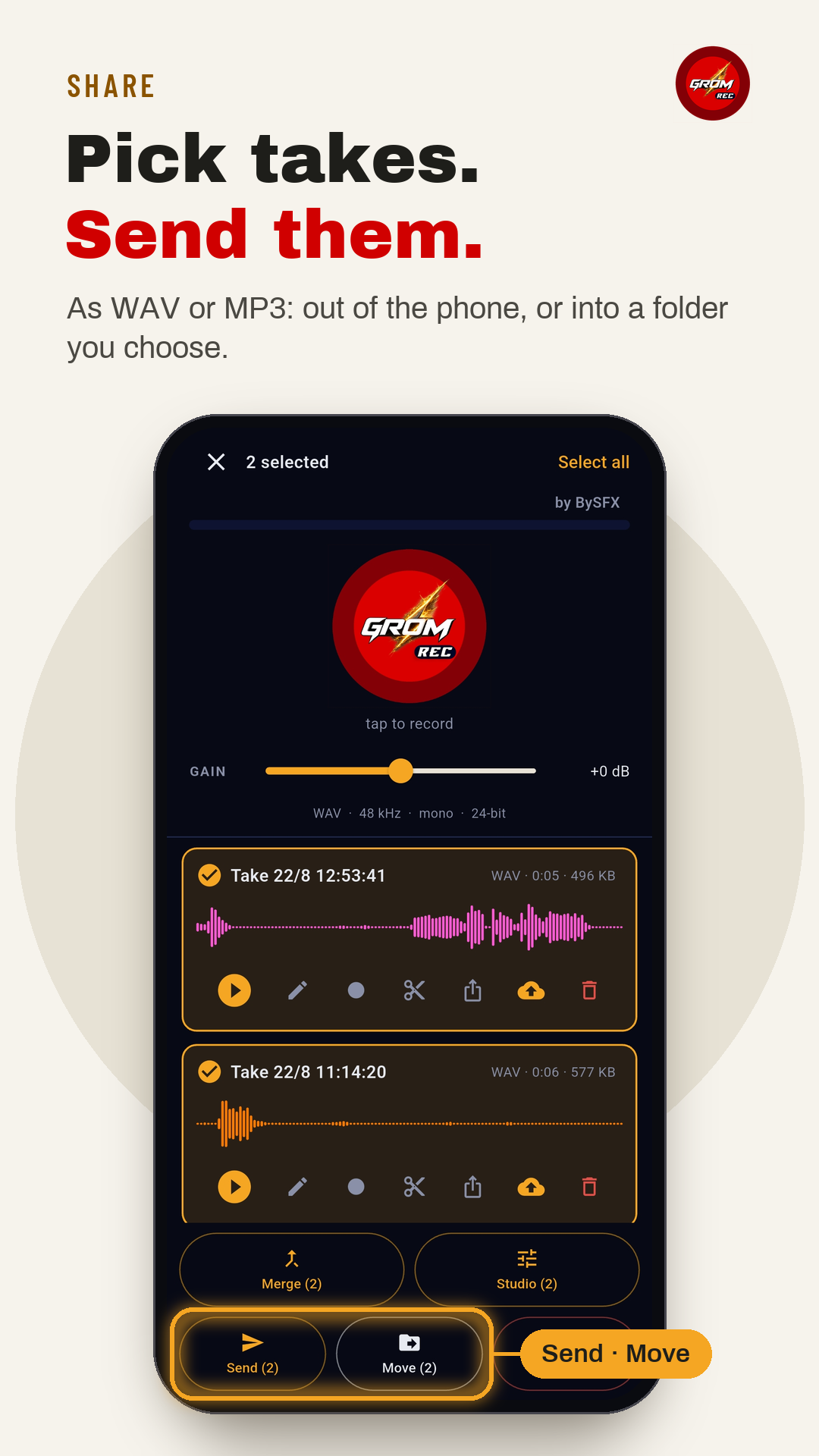
- Select one take or many and send them as WAV or MP3 - out of the phone, or into a folder you choose
- Send a take straight into GROM on your computer over Wi-Fi
- Takes named by scene and take, with the details written inside the WAV file PRO
Screens
02
Edit
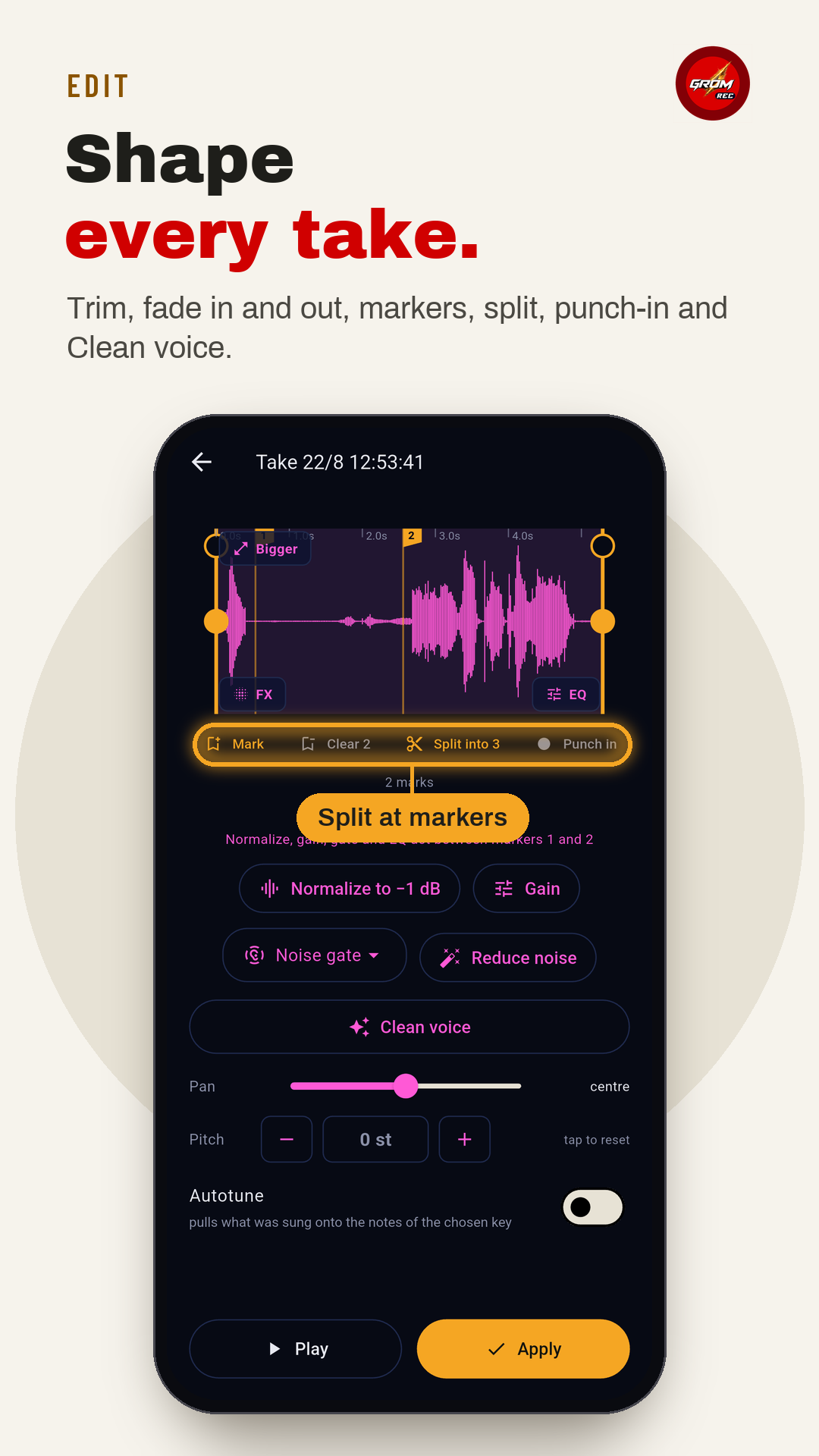
Every take, shaped on the phone
Trim it, fade it in and out, split it at markers, punch in a better line. Clean up the noise, set the level, add some space - then have fun with pitch and autotune. All of it is free.
- Trim, fade in and out, gain and normalize to −1 dB
- Markers, split, punch-in and re-record
- Noise gate, Reduce noise and Clean voice
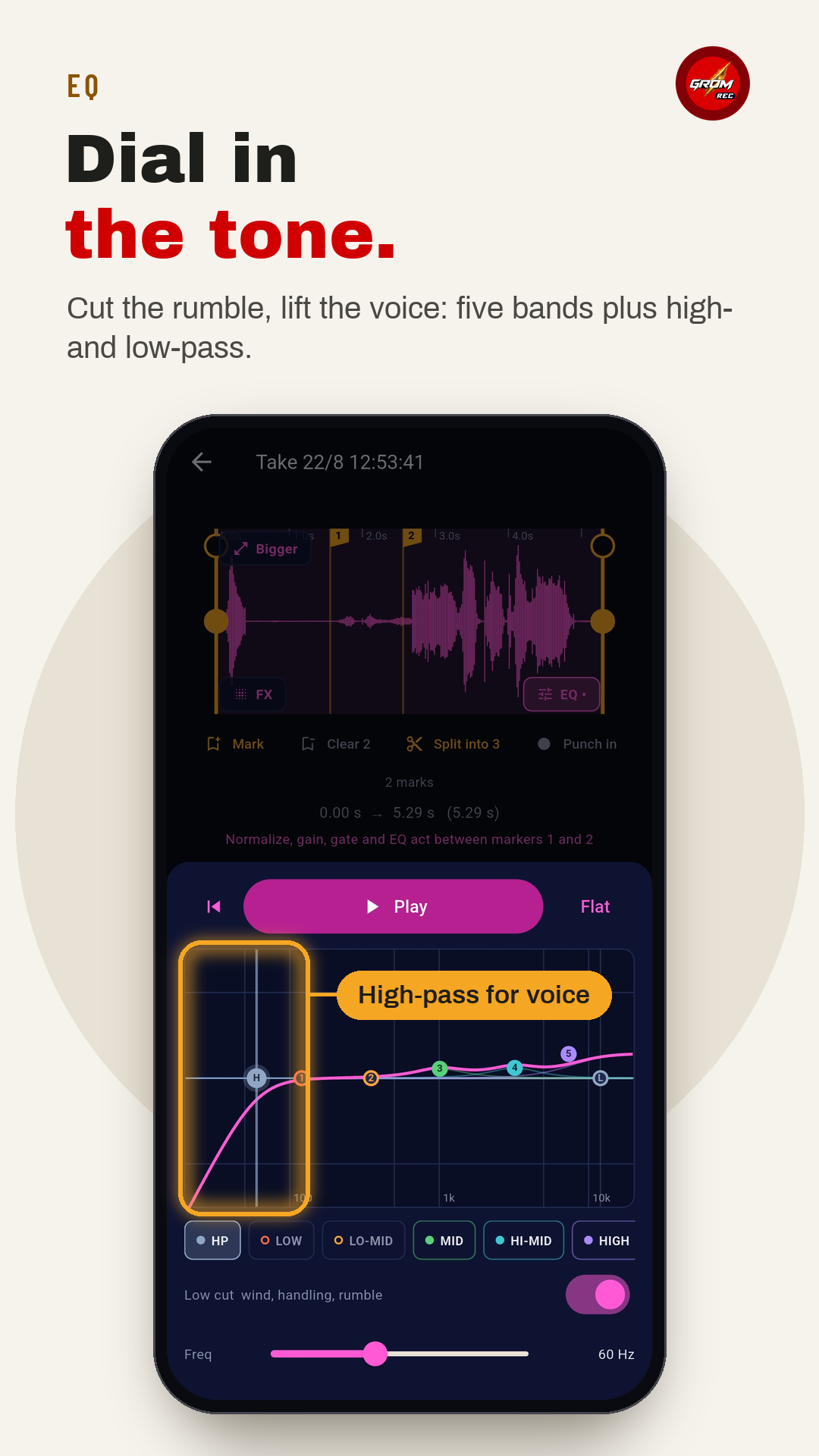
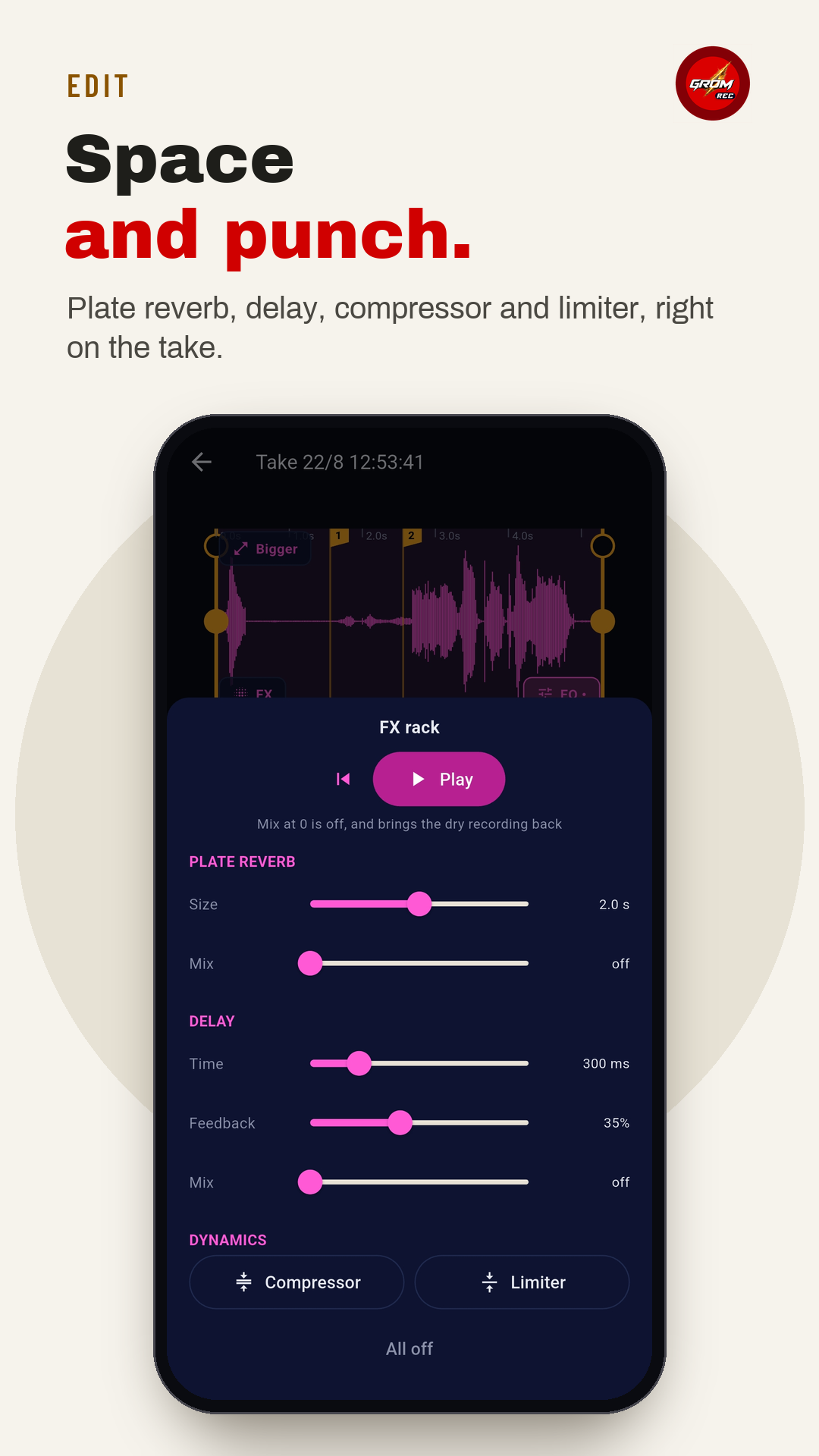
- EQ with high-pass, plate reverb, delay, compressor and limiter on a take
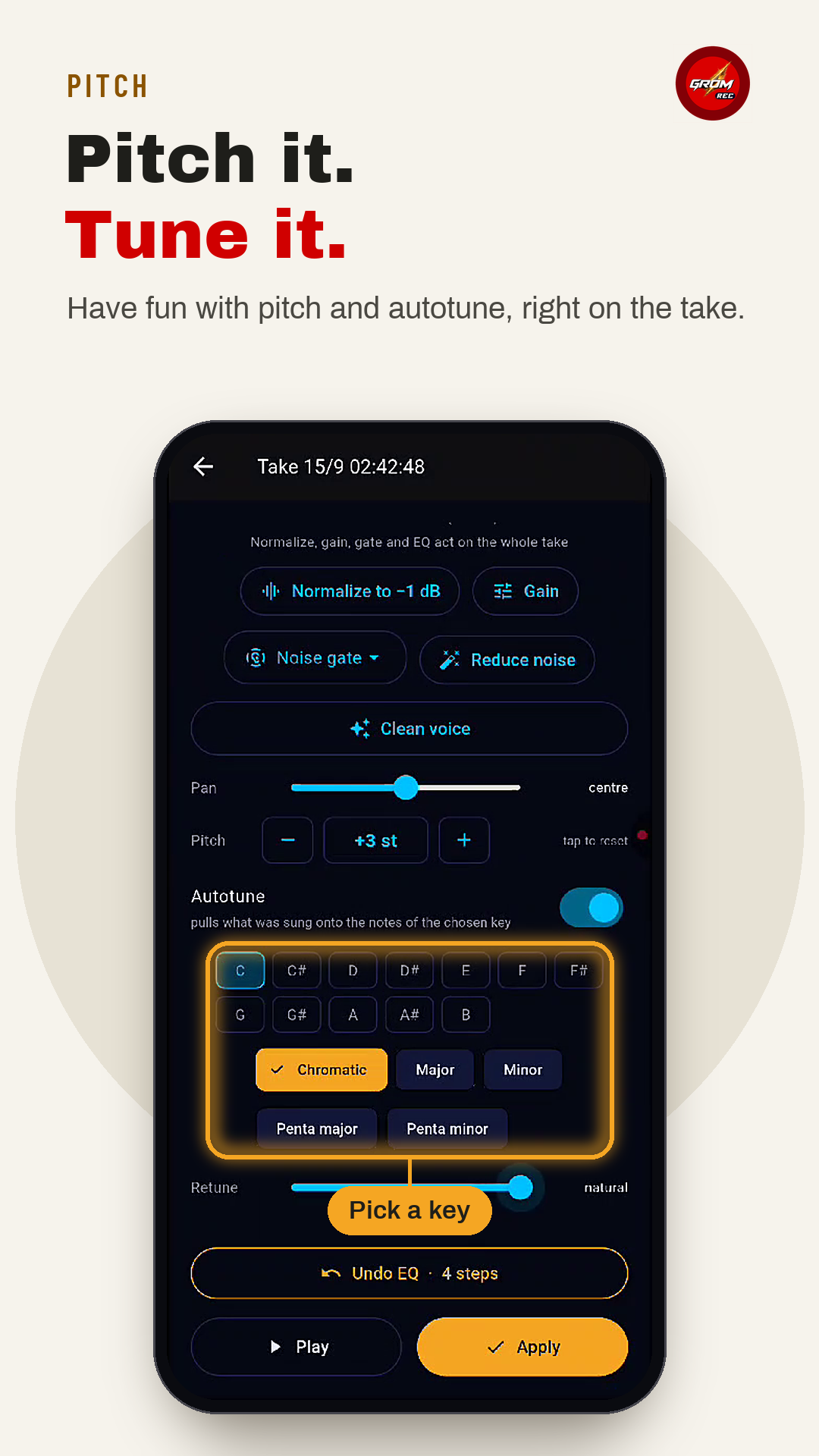
- Have fun with pitch and autotune
Screens
03
StudioGrom PRO
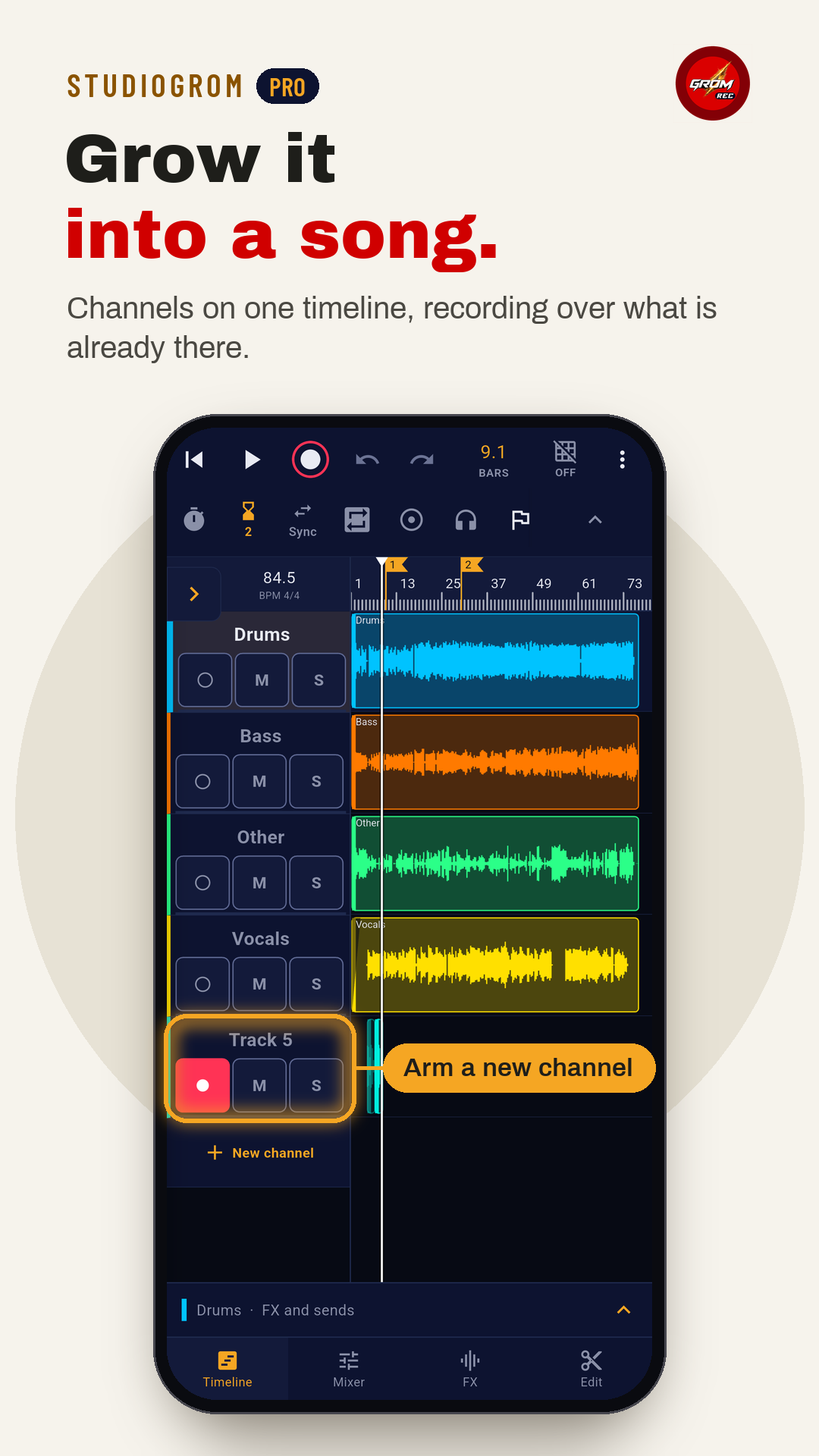
Multitrack on the phone
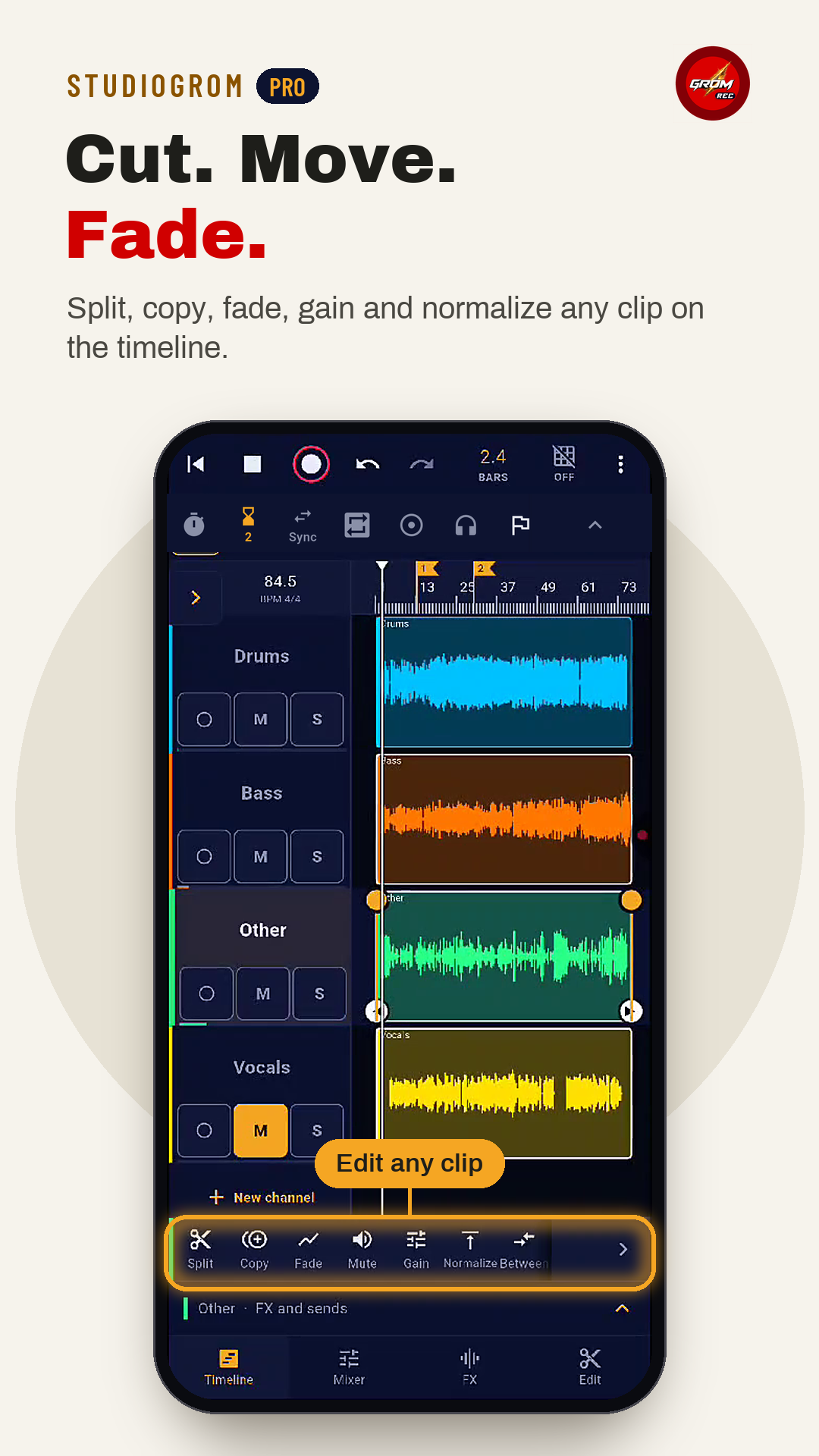
Channels sit one under another on one timeline. You record over what is already there with loop and punch-in, move, trim and fade clips, and one undo covers all of it.
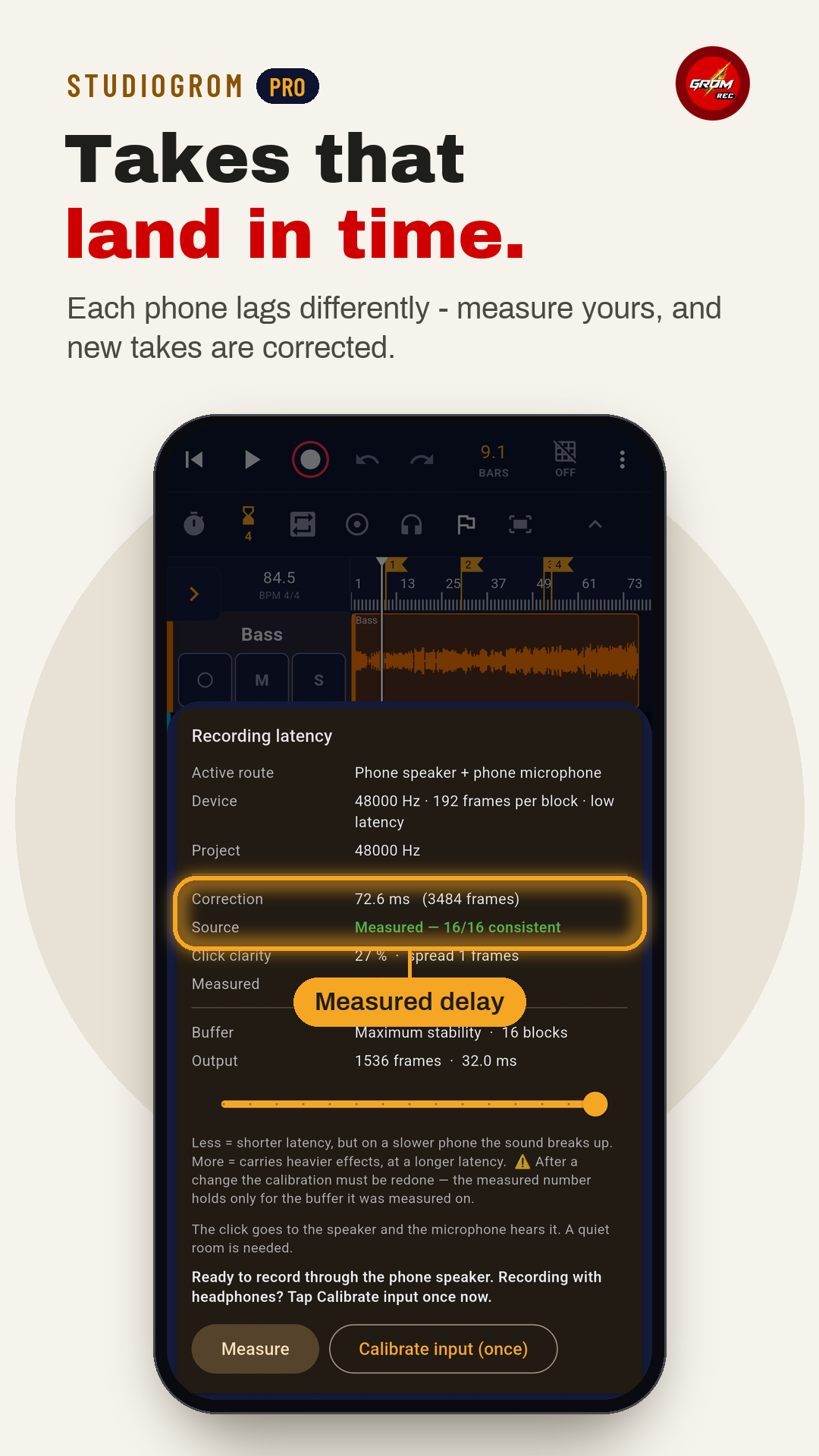
Every phone has its own latency. StudioGrom measures yours and corrects every new take. If a pass is still a little off, zoom in and drag it into place.
- Recording latency measured and corrected for your phone and route
- Zoom in and drag a track to the exact spot
- Tempo with TAP, count-in, loop, punch-in and monitoring
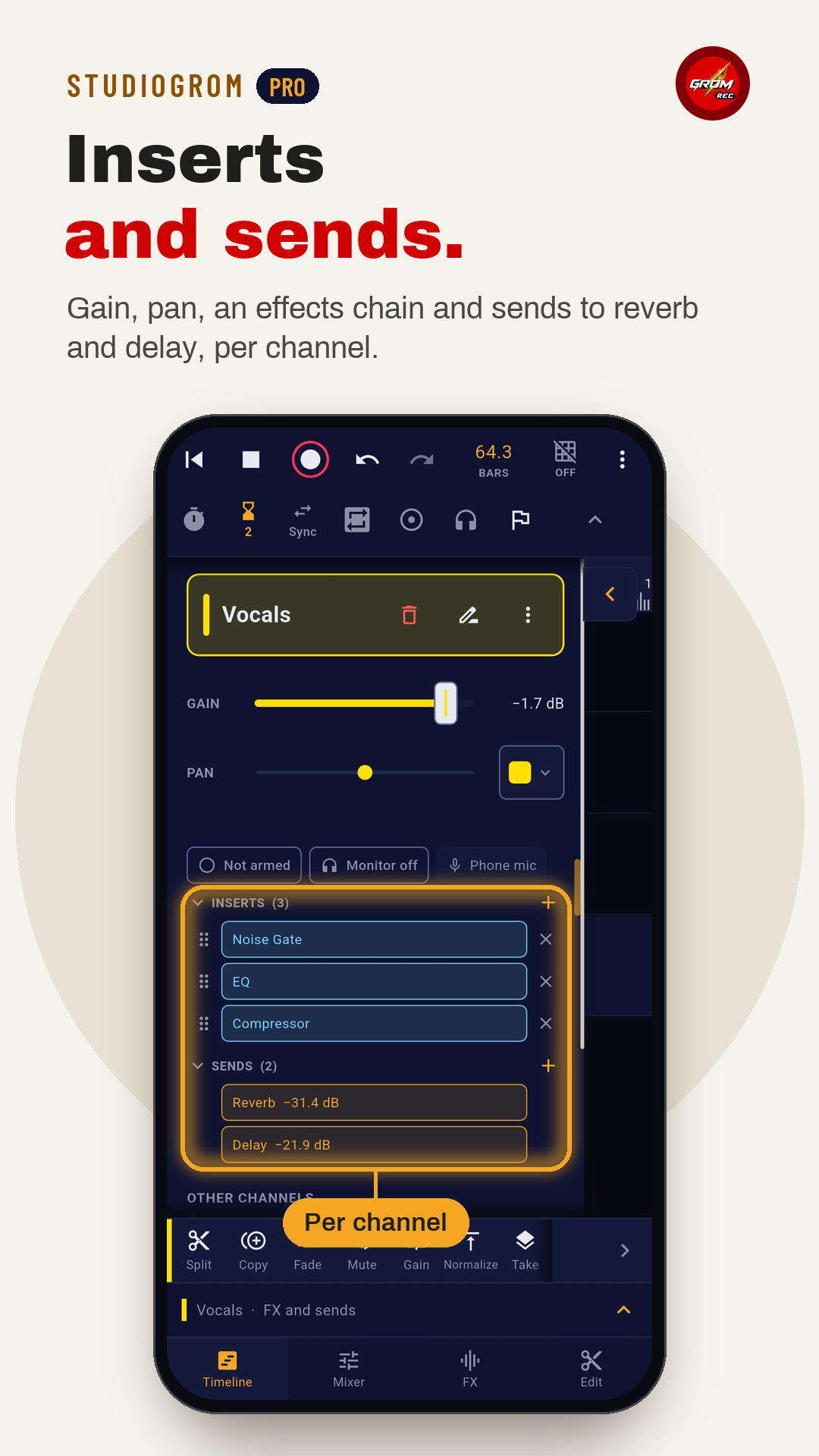
- Gain, pan, inserts and sends on every channel
- Drag, trim, split, fade and delete clips; add and delete channels
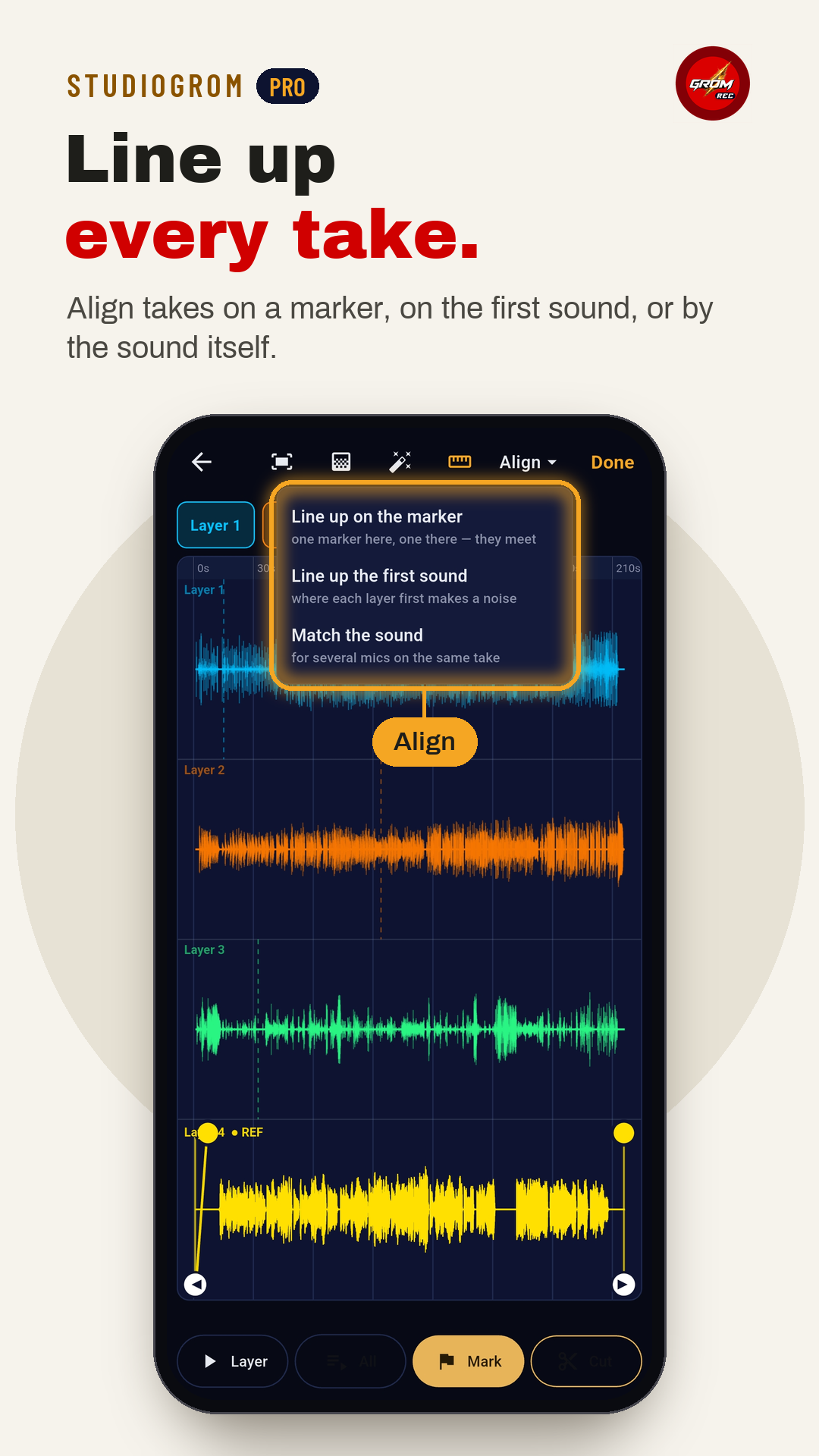
- The big editor: every channel as a layer, lined up in one tap
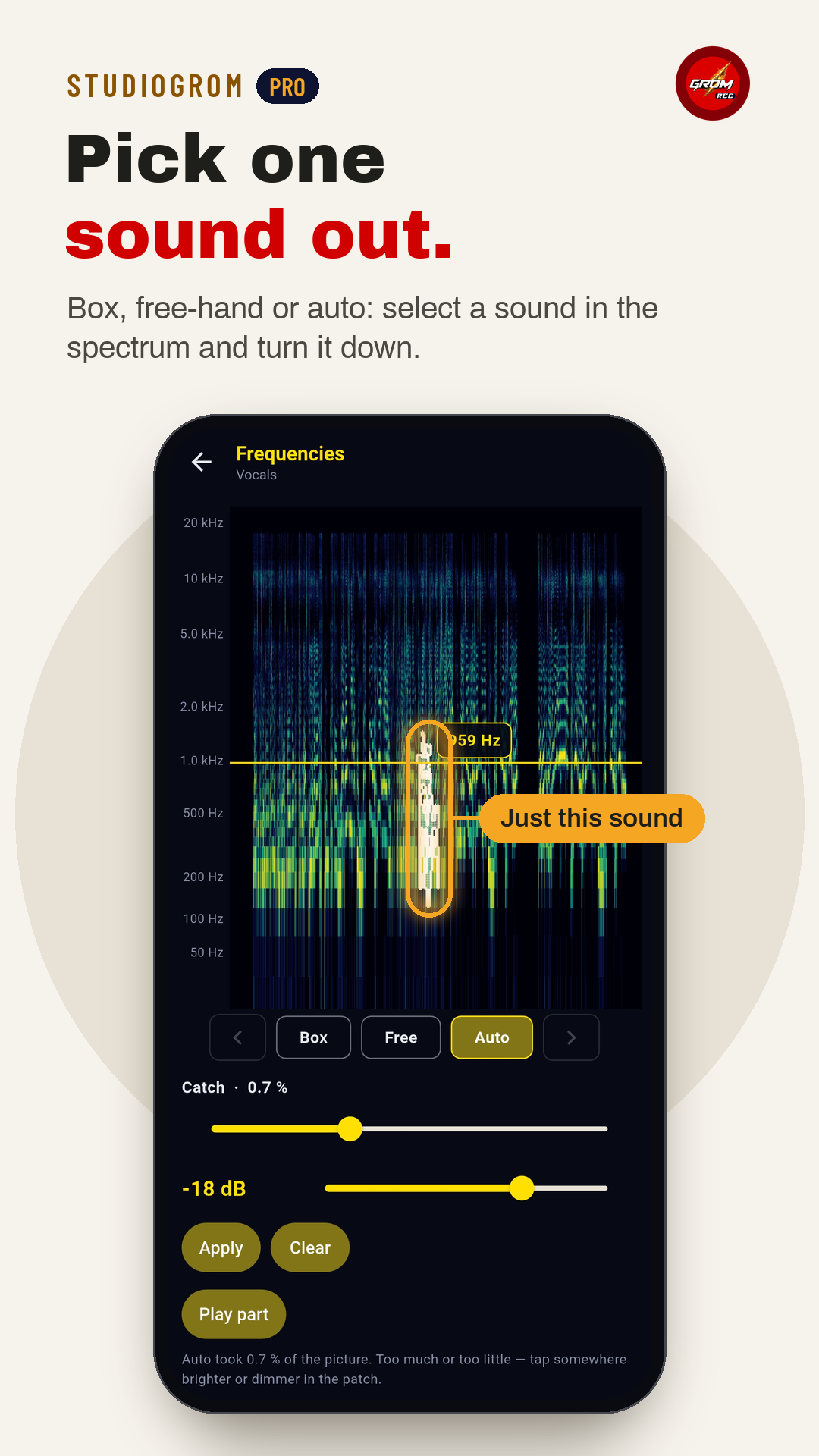
- Frequencies: select one sound in the spectrum and turn it down
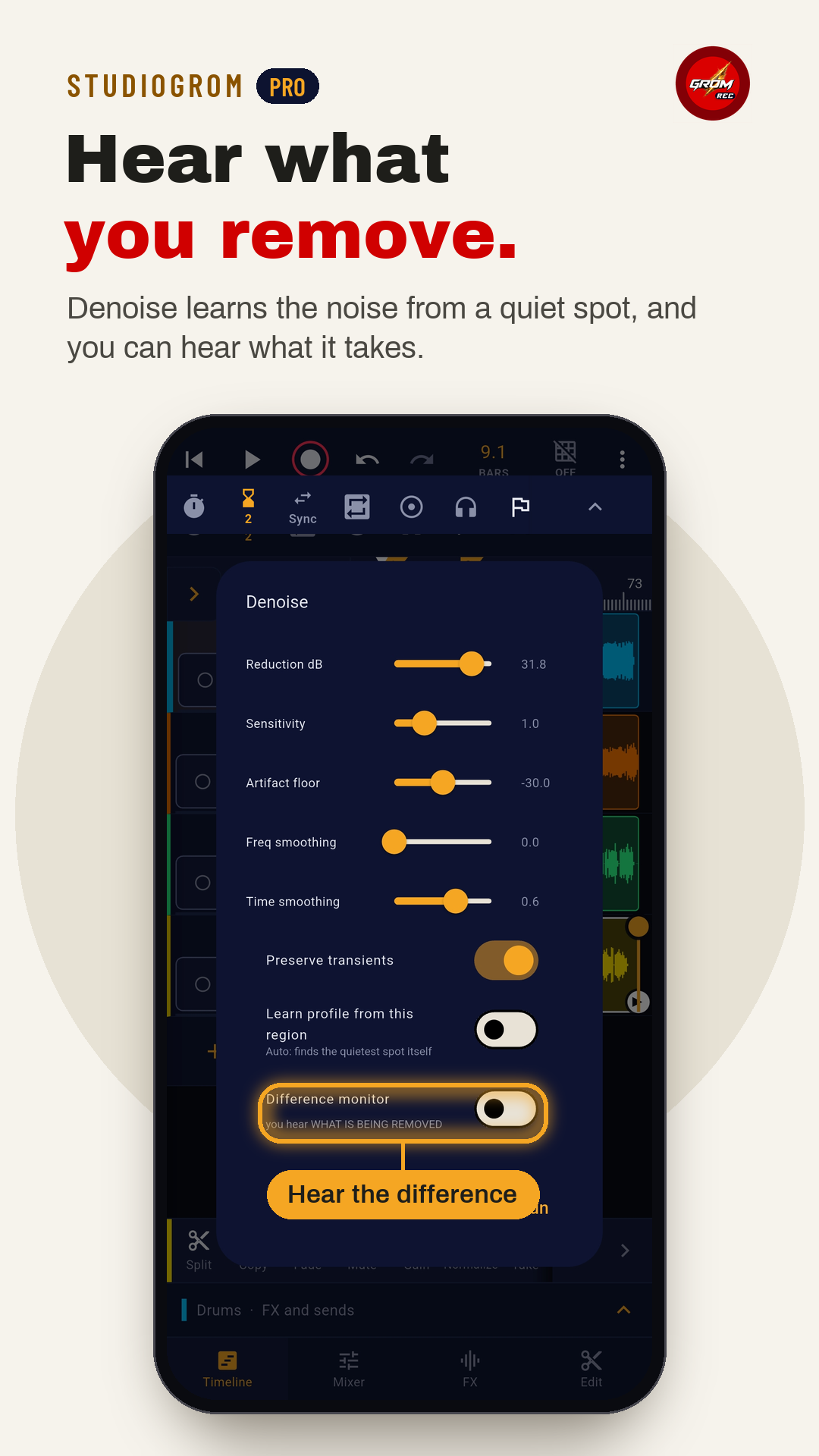
- Denoise that learns from a quiet spot - and lets you hear what it removes
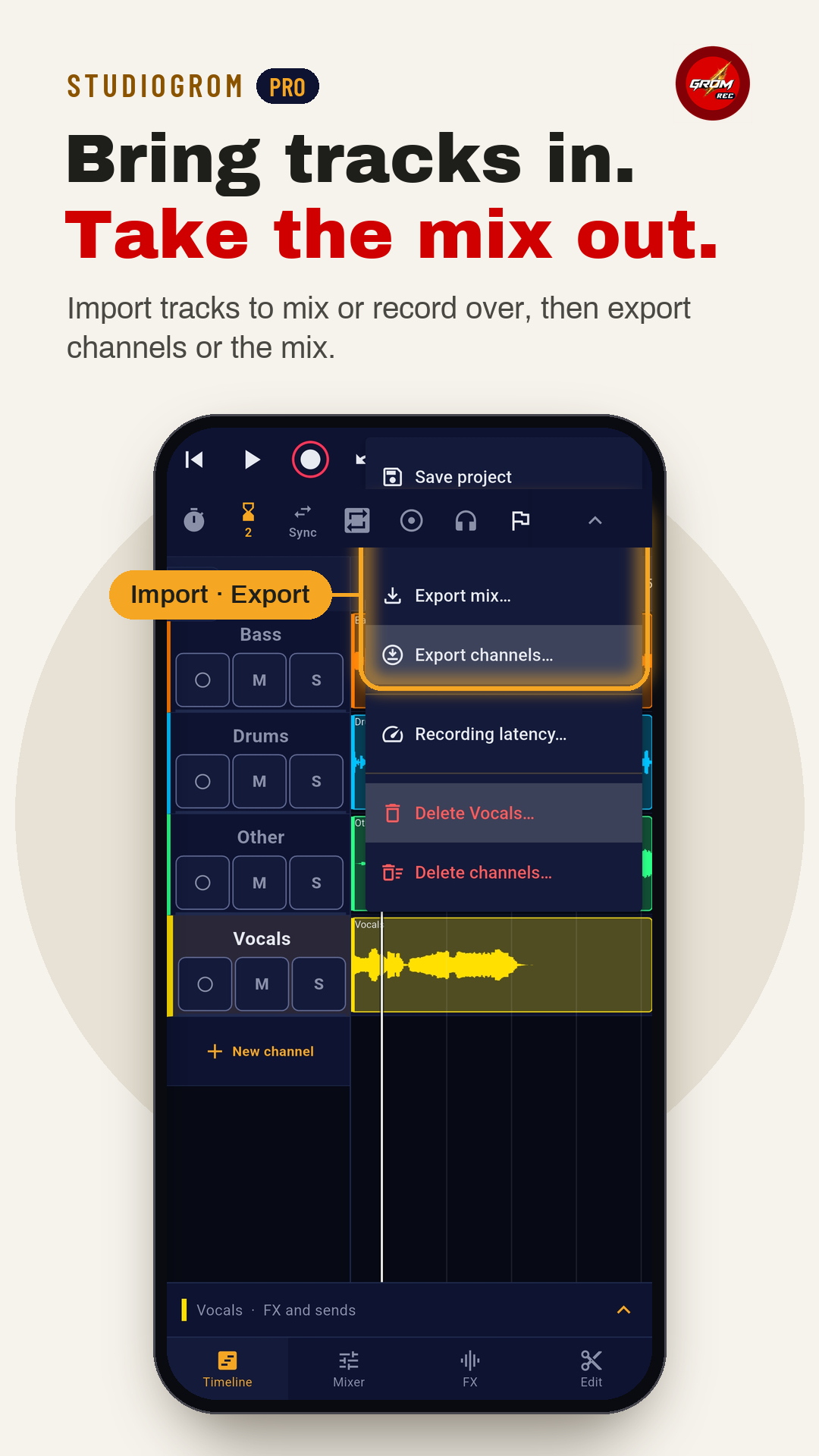
- Import tracks to mix them or record over them
- Export every channel, or the finished mix through the master
- Audio only - no MIDI
Screens
04
Effects PRO
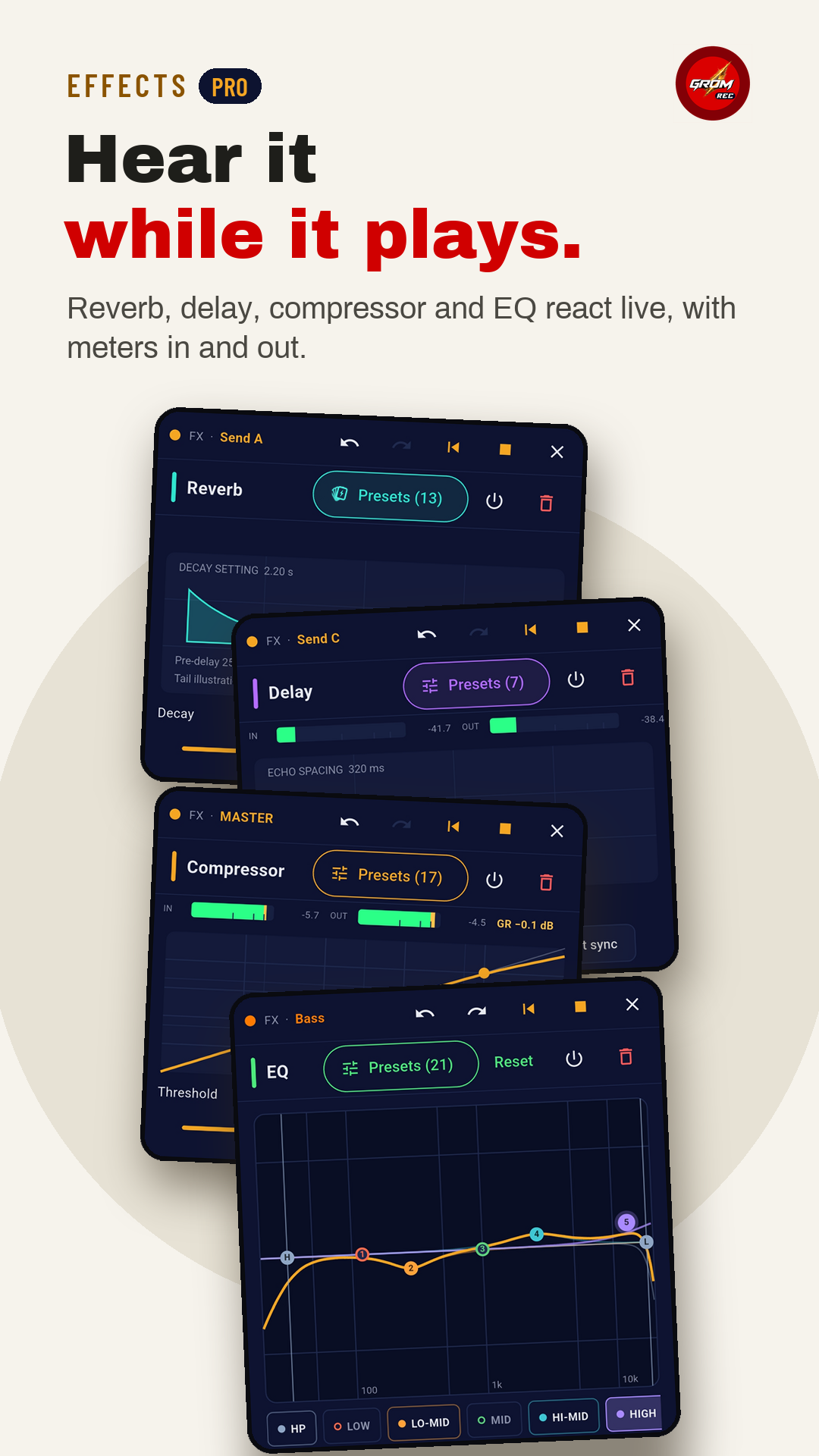
Effects that show what they do
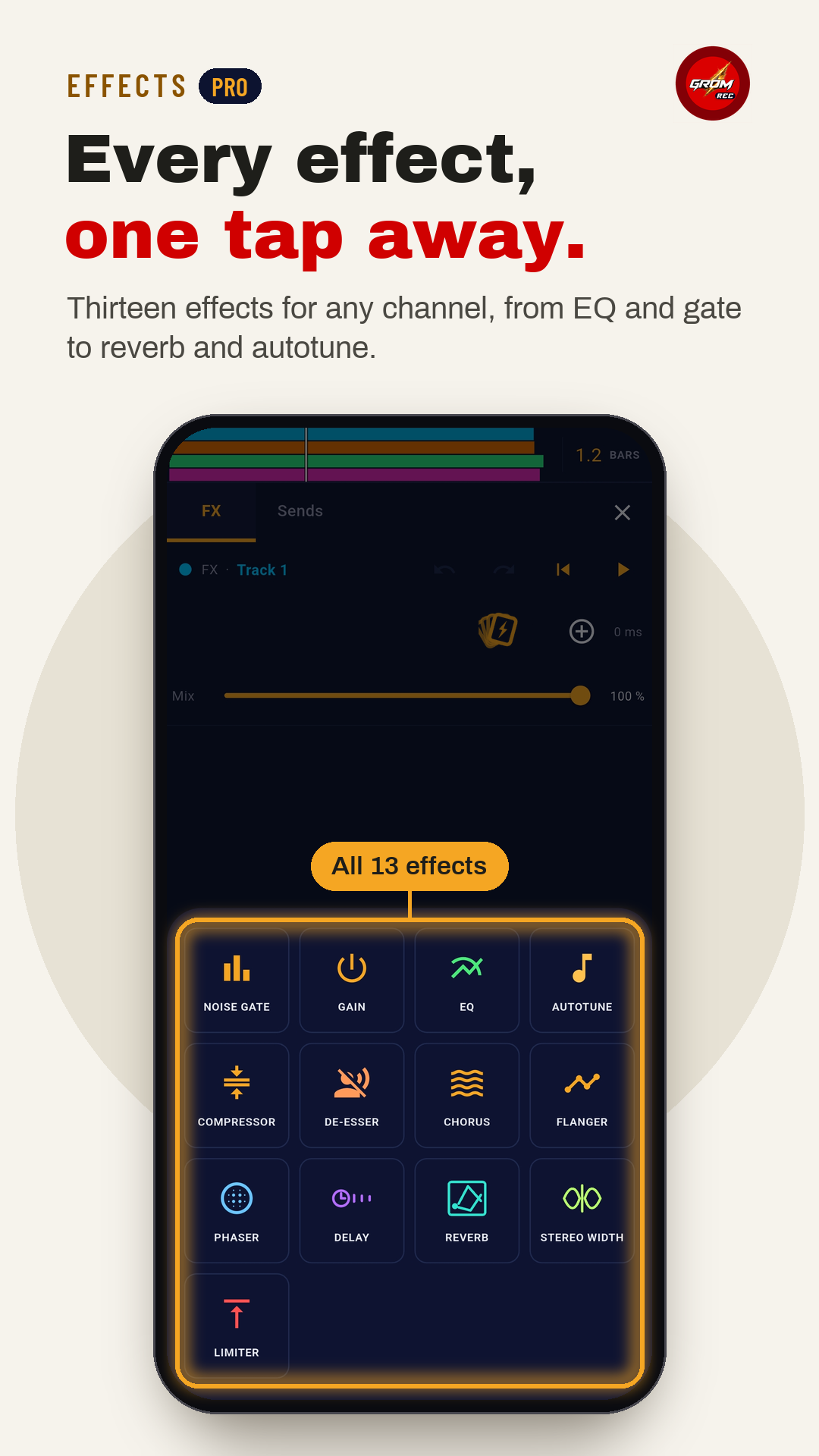
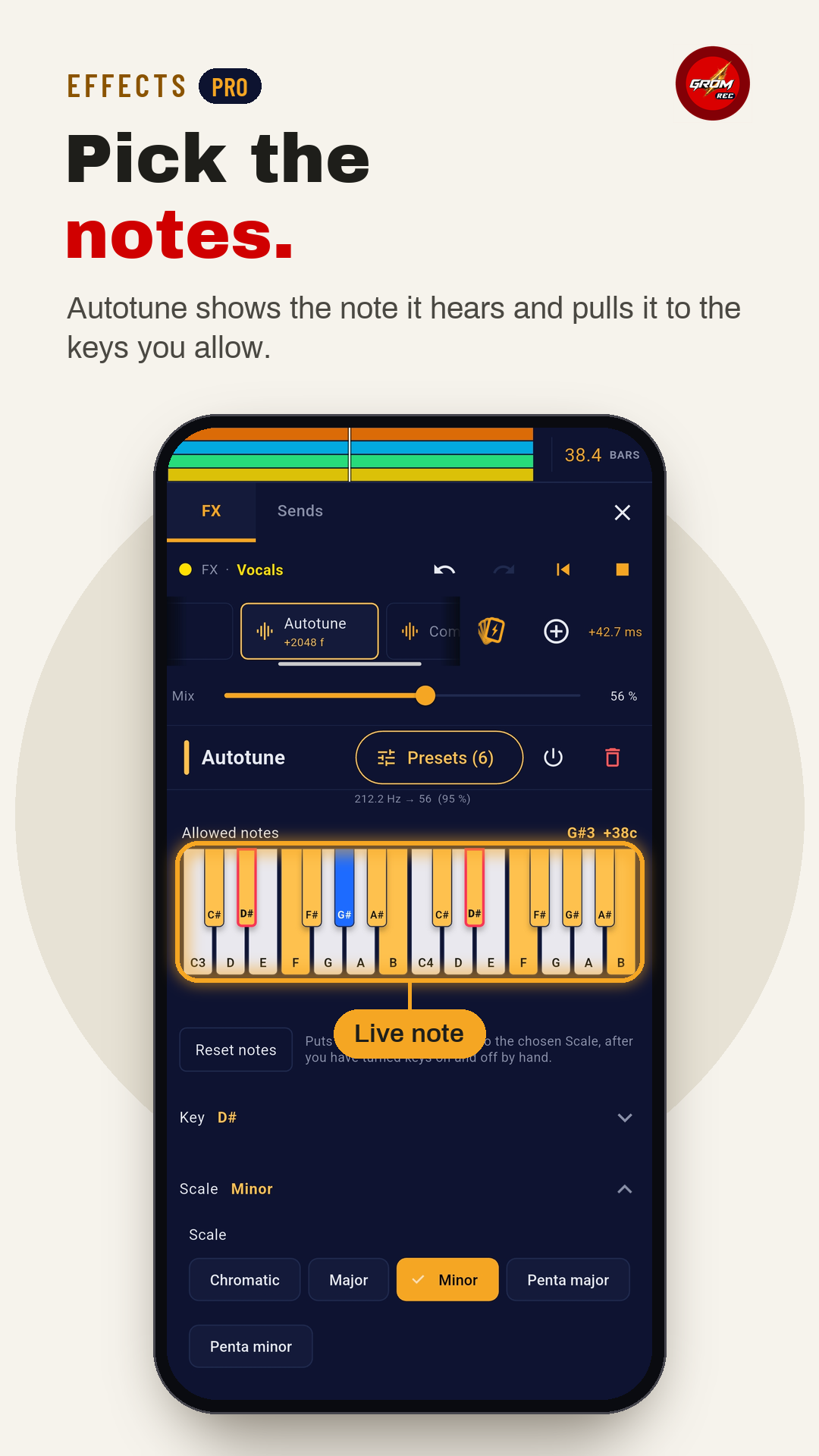
Thirteen effects for any channel of the studio, with ready-made presets. Each one shows its work while the song plays - meters in and out, curves, and the note autotune hears.
- EQ, compressor, de-esser, noise gate, limiter, gain, chorus, flanger, phaser, stereo width and autotune in any slot
- Four send buses - reverb and delay by default, but any effect or a whole chain can go on them
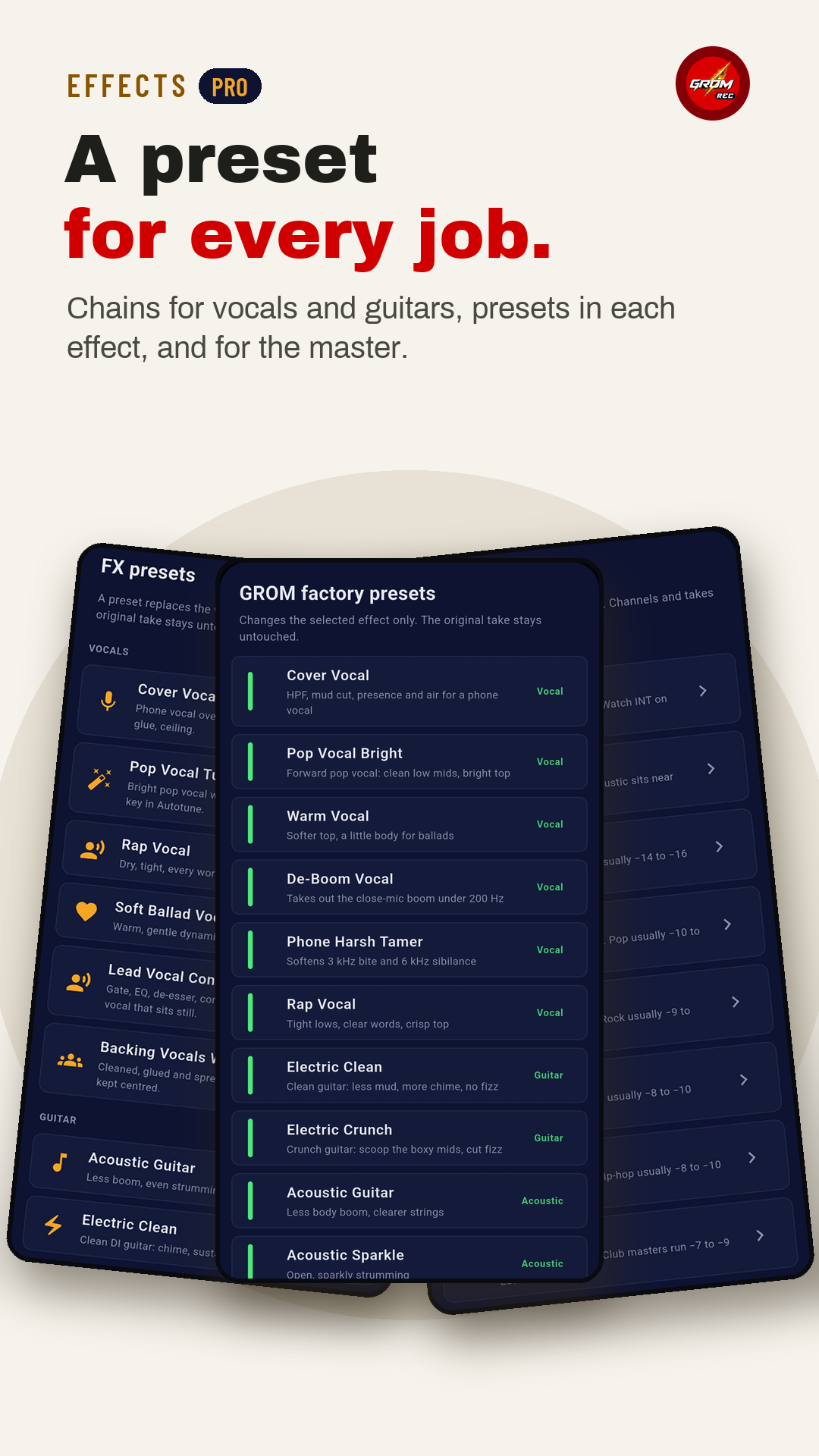
- Its own presets in EQ, compressor, gate, de-esser, limiter, reverb, delay, chorus, flanger, phaser, stereo width and autotune
- Track presets replace the whole chain: vocals, guitars, speech, instruments
- The original take always stays untouched
Screens
05
Mix & master PRO
Mixer, master and export
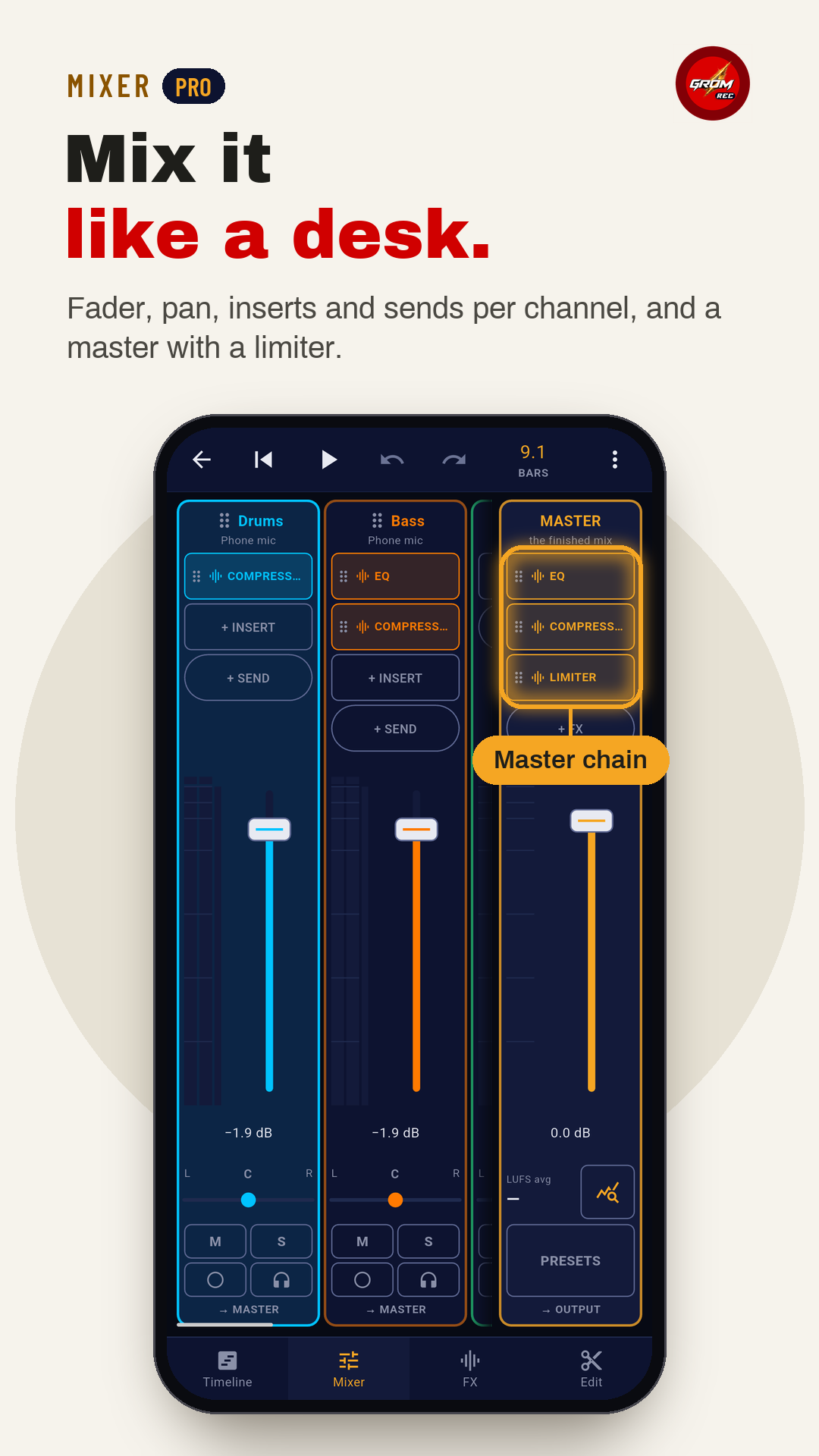
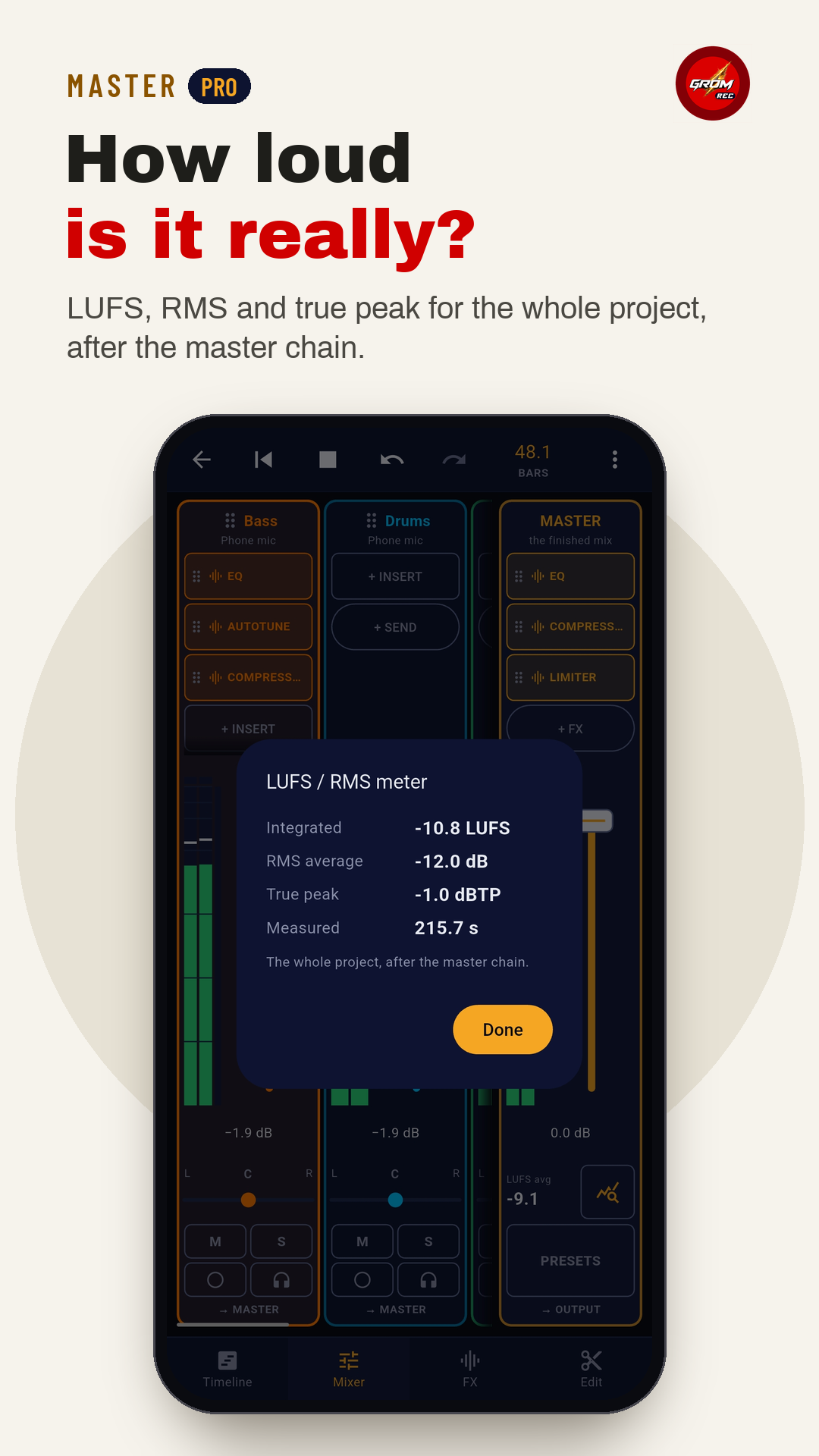
A channel strip for every channel - meters, fader, pan, mute and solo - four send buses, and the master over the finished mix: EQ, compressor and a true-peak limiter, with LUFS / RMS measured through the whole chain.
Your own creativity and everything on hand add up to some serious fun. Save the project to come back to it, or simply export it channel by channel or as the complete mix and master.
- Master presets from Transparent to EDM, with loudness targets
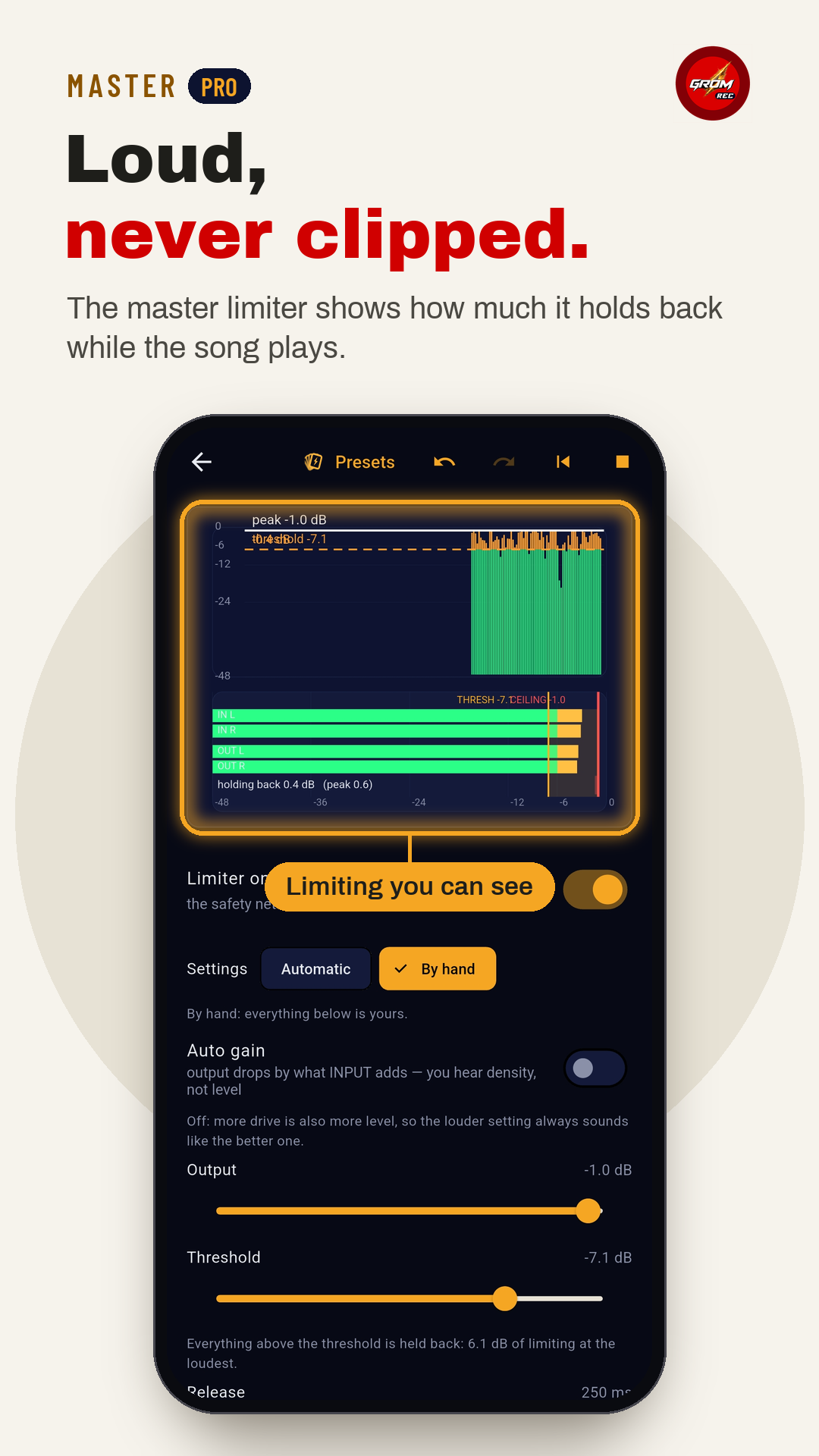
- A master limiter with its own presets, from Vocal Safety to Streaming −1 dB
- LUFS, RMS and true peak for the whole project, after the master chain
- Save the project and pick it up later
Screens
Free
The recorder and the editor
- One-tap recording with markers
- Pre-record, auto-record, low cut and trim silence
- Trim, fades, split, punch-in and re-record
- Normalize, gain, noise gate, Reduce noise and Clean voice
- EQ, compressor, limiter, reverb, delay, pitch and autotune on a take
- WAV or MP3, sent as MP3 or as the original
- Send takes over Wi-Fi into GROM
PRO · one purchase in the same app
StudioGrom and the rest of PRO
- StudioGrom multitrack
- The mixer and the master
- The effects, and the presets
- Export from the Studio
- Naming and metadata
- Monitor through headphones
- Line / instrument input
FAQ
Questions and answers
What is GROM Rec?
A free field recorder for your phone, with sound editing built in. It also sends what you record over Wi-Fi to GROM, our sound design instrument for desktop and VST. In PRO it becomes a mobile DAW: multitrack recording, mixing and mastering, as far as a phone allows.
What is the QR code for?
It sends the sounds you record in the field over Wi-Fi straight into GROM, the desktop and VST instrument. Scan the code once, in GROM under Settings > Upload from Mobile, and from then on Sync sends your new takes. No cable and no cloud: the phone and the computer only need to be on the same Wi-Fi. It is free.
Why do my overdubs land a little late?
Latency depends on the phone and on what you record through. GROM Rec corrects it as well as a phone allows, by measuring and calibrating the delay for the way you record. Whatever is left you fix by dragging the clip or with Align, and with a little creativity you will have fun with your material.
How do I set up the latency correction?
Open Recording latency. Through the phone speaker, tap Measure once in a quiet room. With wired headphones, unplug them, tap Calibrate input, plug them back in and tap Estimate from device. Over Bluetooth the delay can only be estimated, so wired headphones are the better choice for overdubs.
What format does it record in?
WAV is the main, high-quality format: 44.1 or 48 kHz, 16 or 24-bit, mono or stereo. MP3 files can be imported and converted to WAV in the Studio, and anything you record in Rec or in the Studio can also be exported as MP3.
What do scene, take and notes do?
They are written inside the WAV file itself, not only in its name. Project, scene, take and note go into an iXML chunk, the standard that field recorders use, and the start time goes into the BWF timestamp. Any DAW or video editor can read them and place the file at the time of day it was recorded. Markers travel with the file too.
Coming soon
On Google Play and the App Store
Want to know the moment it launches? Write to support@bysfx.com.